Tips for using the free version of Canva to create files suitable for printing.
Pick Appropriate Template – It’s important to start your design at the correct size. For an 8.5 x 11 size file, use the Flyer template, not the A4 Document (a European size that does not convert to an 8.5 x 11 proportionately.)
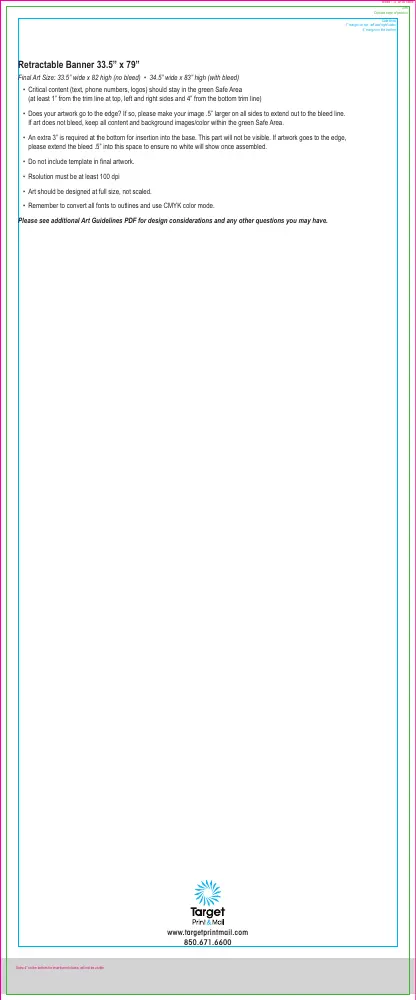
Margins & Bleed – Turn on Margins and Print Bleeds by going to File in the top toolbar and clicking on each option. Rulers and Guides are also handy to turn on. Margins should be at least .125” on all sides. The larger the document, the larger the margin should be. (Image 1)
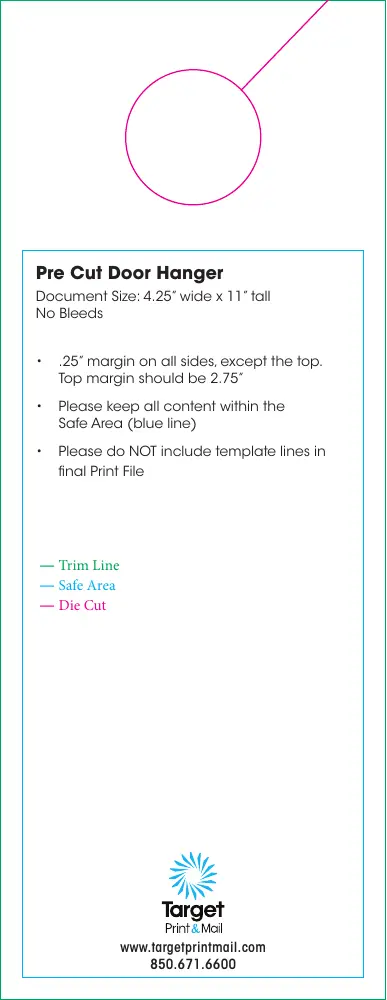
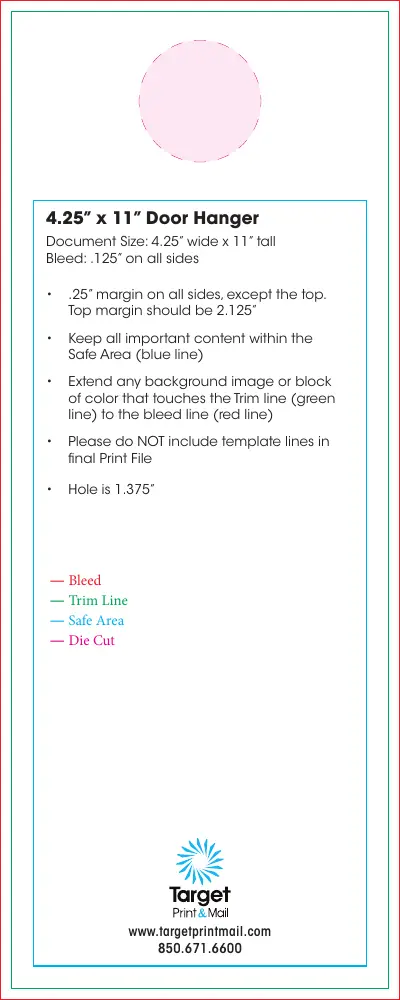
Layout – Keep all important elements and text within the Safe Area. If any element is meant to go to the edge, be sure to extend it to the bleed line. (Image 2)
Upload Elements – If uploading elements such as pictures or logos, be sure they are high quality files. If they look blurry on screen, they will be blurry when printed.
Download File – Select the PDF Print option. Check the Crop Marks and Bleed option. Click Download. (Images 3 & 4)
Color – Please note that Canva does not honor PMS swatches so anything designed in Canva cannot be guaranteed to be color matched.